
How to connect your phone to a PC with Soundlizer Connect
This guide explains how to connect your phone to your computer so Soundlizer can receive audio and display real-time music visualizations
0 Before you start
Your phone and computer must be connected to the same local network.
This usually means:
- Your phone is connected to your home Wi-Fi
- Your computer is connected to the same Wi-Fi
- or your computer is connected to the router via Ethernet cable
The connection will not work if:
- Your phone uses mobile data (4G / 5G)
- The devices are on different Wi-Fi networks
- A guest network isolates devices
1 Install the required apps
Before connecting, install the necessary applications on both devices.
On your phone
Don’t have Soundlizer installed yet?
You can install it on your phone from Google Play using the link below.
After installing, open the app — it will guide you through the initial setup.

On your computer
Download and install Soundlizer Connect for your operating system.
Once installed, launch the application.
2 Configure the mobile app
When you open Soundlizer for the first time, the app will launch a setup wizard where you can choose the audio source.
If you have already completed this step and want to change the settings later, open: Settings → Audio Source
- 1 Choose the audio source type between PC or Mic + PC2.1
- 2 (Optional) Change the Socket Port if needed 2.2
- 3Press Connect to start the connection process.
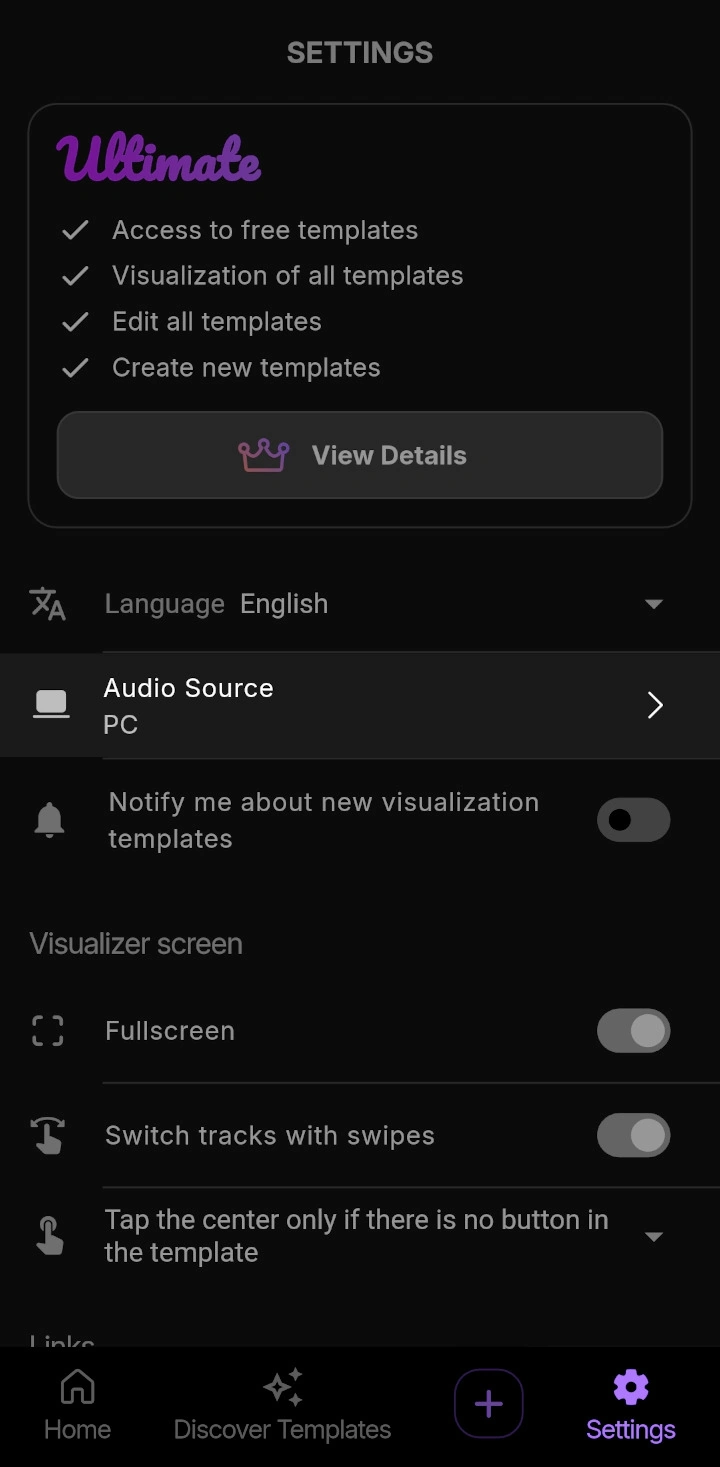
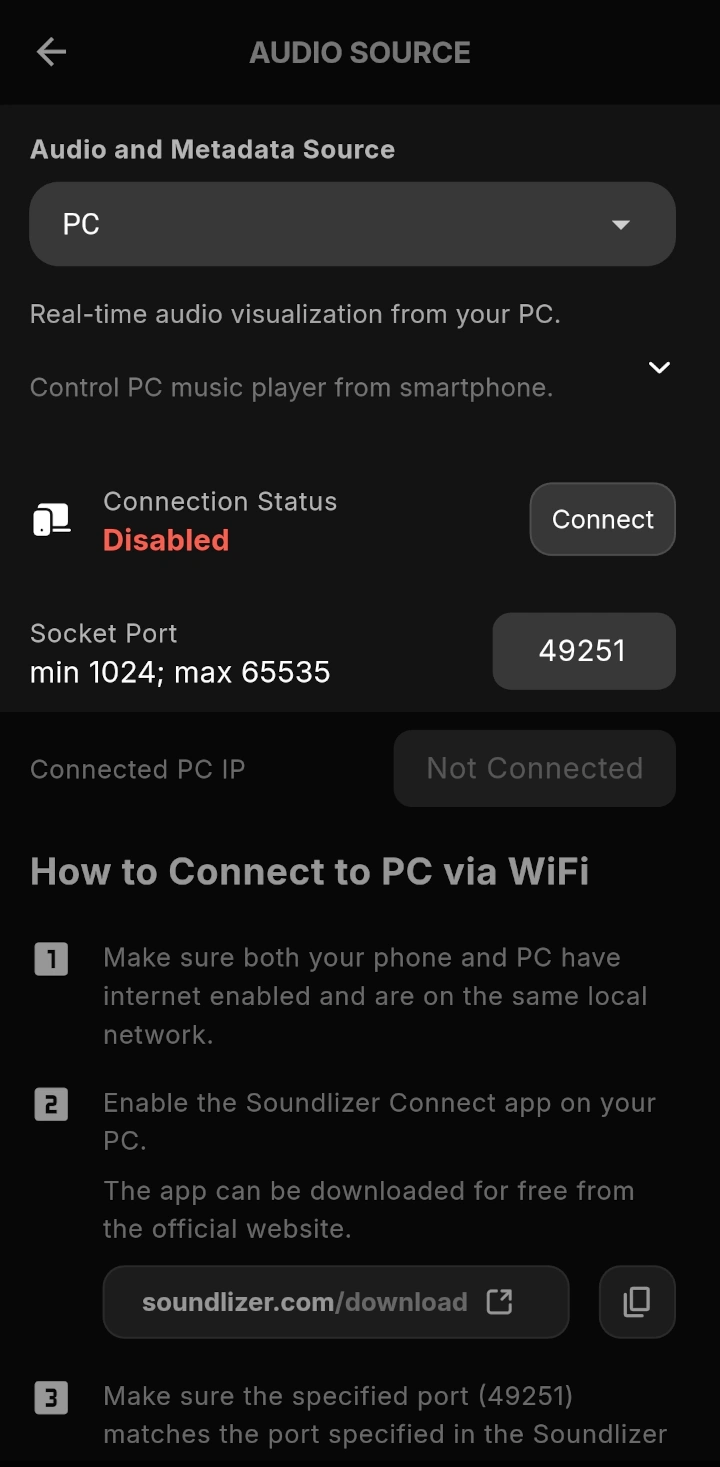
2.1 Audio and Metadata Source modes
Soundlizer allows you to choose how audio data for visualizations and track information are received.
PC (recommended)
| Audio source: | your computer |
|---|---|
| Track information: | your computer |
The visualizer reacts directly to the audio playing on your PC, and the app also receives track metadata (artist, title, etc.) from your active media player via Soundlizer Connect.
Use this mode if you want the most accurate visualizations synchronized with the sound playing on your computer.
Mic + PC
| Audio source: | phone microphone |
|---|---|
| Track information: | your computer |
The visualizer reacts to the sound captured by your phone’s microphone, while track metadata is still received from your PC.
This mode can be useful if your phone is placed near speakers and you want the visualizer to react to the surrounding sound.
2.2 Socket Connection Port
By default, Soundlizer uses port 49251. In most cases, you do not need to change this value.
However, if this port is already in use on your network or blocked by a firewall, you can choose a different port.
Make sure that the same port is configured both in Soundlizer mobile app and in Soundlizer Connect app.
3 Configure the desktop app
To connect your phone to the computer:
- 1 Launch the application
- 2Make sure the connection port is the same as the one configured in Soundlizer on your phone.
By default, both apps use port 49251, so normally you do not need to change anything. - 3 Click Connect device
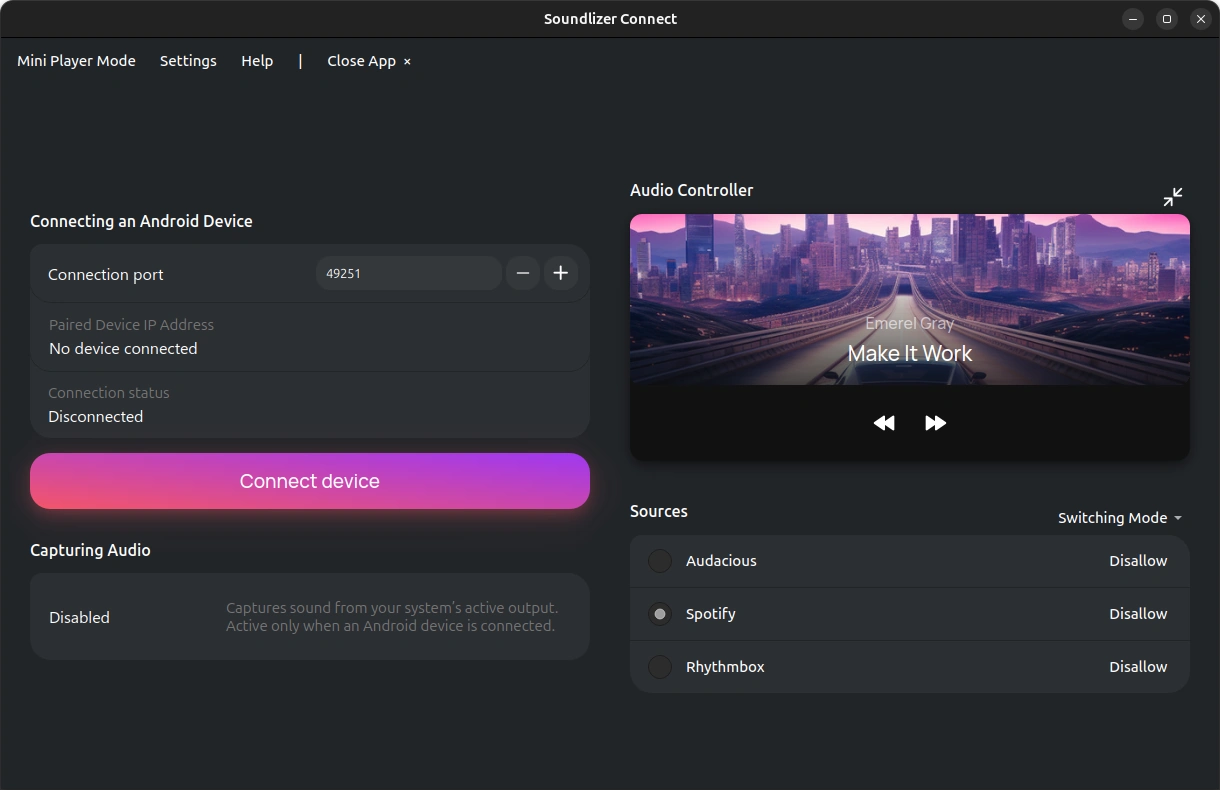
3.1 Audio Controller and Metadata
On the right side of the Soundlizer Connect window you will see a list of detected media players.
These players can provide track metadata (artist, title, etc.) that will be sent to your phone running Soundlizer.
By default, Soundlizer Connect automatically selects the currently active media player. If needed, you can manually choose a different player from the list.
From this panel you can also control the selected player — pause or resume playback and switch tracks.
For convenience, Soundlizer Connect can also be switched to Mini Player mode, which turns the app into a compact floating panel on your desktop for quick access to playback controls.
4 Done
Once your phone is successfully connected to your computer, open any visualization template you like in Soundlizer.
The visualizer will immediately start reacting to the audio from your PC.
Choose your favorite style, try different templates, and enjoy the visualizations.
Troubleshooting
If your computer is not detected, try the following.
Make sure both devices are connected to the same Wi-Fi network.
Close and reopen the application on your computer.
Your operating system firewall may block the connection. Allow Soundlizer Connect to access the local network.
Close Soundlizer completely and open it again.
Tips for the best experience
For the most stable connection and responsive visualizations in Soundlizer, consider the following recommendations:
Modern 5 GHz Wi-Fi networks usually provide lower latency and higher bandwidth than older 2.4 GHz networks. If your router supports it, connect both your phone and computer to the 5 GHz network.
A strong Wi-Fi signal helps reduce delays and ensures smoother visualizations.
Large downloads or streaming on the same network may increase latency and affect the responsiveness of the visualizer.