
How to configure Windows Firewall for Soundlizer Connect
A step-by-step guide to configuring the Windows Firewall to connect an Android device over the local network.

If an Android device cannot connect to Soundlizer Connect on Windows, the Windows firewall may be blocking the connection. Soundlizer Connect uses a UDP connection to send visualization data from your computer to the Android device.
In most cases, it is enough to allow Soundlizer Connect through the firewall on private networks.
What network connection does Soundlizer Connect require?
Soundlizer Connect and the Android device must be connected to the same local network.
For example:
- the computer is connected to the home router via Wi-Fi or Ethernet;
- the Android device is connected to the same router via Wi-Fi.
Soundlizer Connect uses the UDP protocol to send visualization data to the Android device.
The UDP port is specified in the Soundlizer Connect connection settings. The default port is 49251.
Allowing Soundlizer Connect on first launch
When you launch Soundlizer Connect for the first time, Windows may show the following notification:
Windows Defender Firewall has blocked some features of this app.
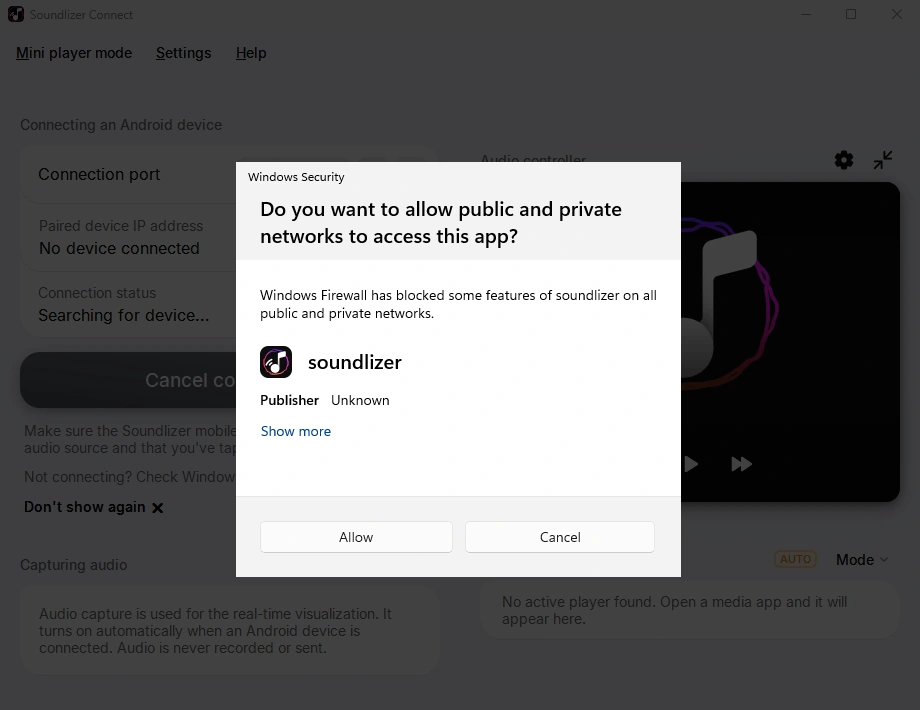
If this window appears:
Click Allow.
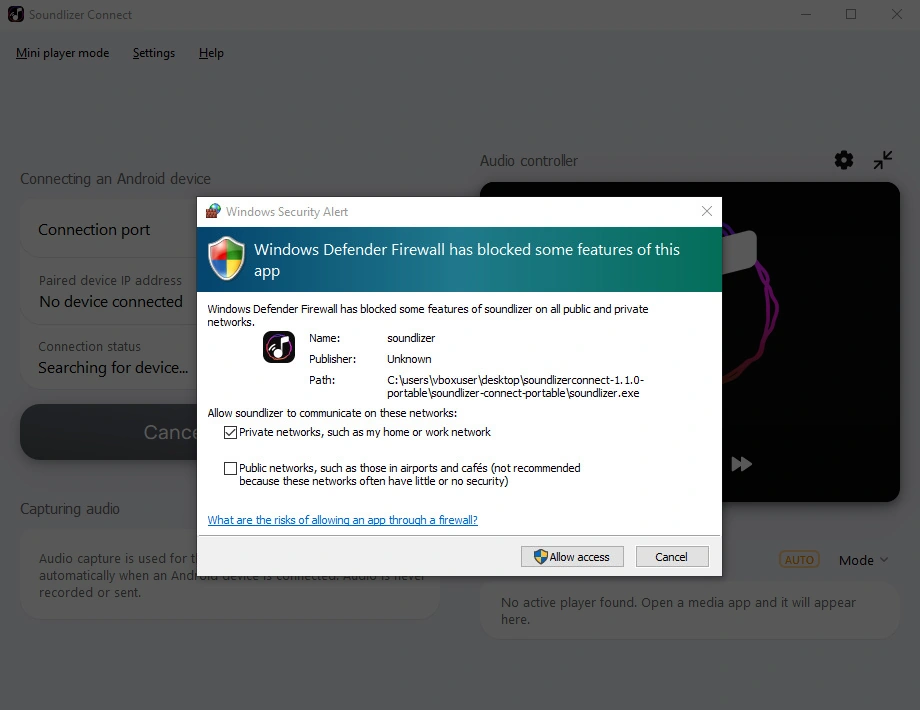 If this window appears:
- Make sure Private networks is enabled.
- Click Allow access.
If the firewall window did not appear
If Soundlizer Connect has already been launched before, Windows may not show the permission window again. In this case, you can allow the application manually.
Windows 11
- Open Windows Settings.
- Go to Privacy & security → Windows Security.
- Open Firewall & network protection.
- Select Allow an app through firewall.
- Click Change settings.
- Find Soundlizer Connect in the list. Depending on the version of the program, the rule may appear as soundlizer.exe, Soundlizer, or Soundlizer UDP.
- If Soundlizer Connect is not listed, you can add it manually:
Click Allow another app....
Click Browse and find the Soundlizer Connect executable filesoundlizer.exe.
If you are using the installed version, the file is usually located inC:\Program Files\Soundlizer Connect. If you are using the portable version, findsoundlizer.exein the folder where you extracted the.ziparchive.
Select the file and click Open, then Add. - Enable access for Private network.
- Click OK and try connecting the Android device again.
Windows 10
- Open Windows Settings.
- Go to Update & Security → Windows Security.
- Open Firewall & network protection.
- Select Allow an app through Firewall.
- Click Change settings.
- Find Soundlizer Connect in the list. Depending on the version of the program, the rule may appear as soundlizer.exe, Soundlizer, or Soundlizer UDP.
- If Soundlizer Connect is not listed, you can add it manually:
Click Allow another app....
Click Browse and find the Soundlizer Connect executable filesoundlizer.exe.
If you are using the installed version, the file is usually located inC:\Program Files\Soundlizer Connect. If you are using the portable version, findsoundlizer.exein the folder where you extracted the.ziparchive.
Select the file and click Open, then Add. - Enable access for Private network.
- Click OK and try connecting the Android device again.
The names of some options may vary slightly depending on the Windows version.
Soundlizer Connect still cannot connect on Windows
If allowing Soundlizer Connect through the Windows firewall did not help, check the following.
1. Make sure both devices are on the same network
The computer and Android device must be connected to the same local network.
It is fine if the computer uses Ethernet and the phone uses Wi-Fi, as long as both devices are on the same network.
2. Make sure you are not using a guest network
Guest Wi-Fi networks often isolate connected devices from each other.
If the phone is connected to a guest network, try connecting it to a regular Wi-Fi network instead.
3. Check client isolation settings
Some routers have AP Isolation, Client Isolation, or similar features. These settings prevent devices on the same Wi-Fi network from connecting directly to each other.
This isolation must be disabled for Soundlizer Connect to work.
4. Check your VPN
A VPN can change local traffic routing or block connections between devices.
Try temporarily disabling the VPN on both the computer and Android device, then check the connection again.
FAQ
Do I need to open a port on the router?
No.
Soundlizer Connect does not require port forwarding on the router. The connection between the computer and Android device takes place within the local network.
Do not expose the Soundlizer Connect port to the internet.
Do I need to allow Public networks?
Usually not.
If the computer is connected to your home or another trusted network, it is enough to allow Soundlizer Connect for the Private network profile.
Allowing the application on public networks is not recommended unless necessary.
Which port does Soundlizer Connect use?
The default UDP port is 49251. You can change the port in the Soundlizer Connect connection settings.
Do I need to manually open the UDP port in Windows?
Usually not. For standard use, it is enough to allow Soundlizer Connect through the Windows firewall on a private network.
You may need to create a separate UDP rule manually in special cases, such as a non-standard firewall configuration.
Can I disable the Windows firewall completely?
It is not recommended. Allowing network access for the application is enough for Soundlizer Connect to work.
Does the connection work over mobile internet?
No. Soundlizer Connect uses a local network connection between the computer and Android device. The phone and computer must be able to communicate with each other over the same local network.